
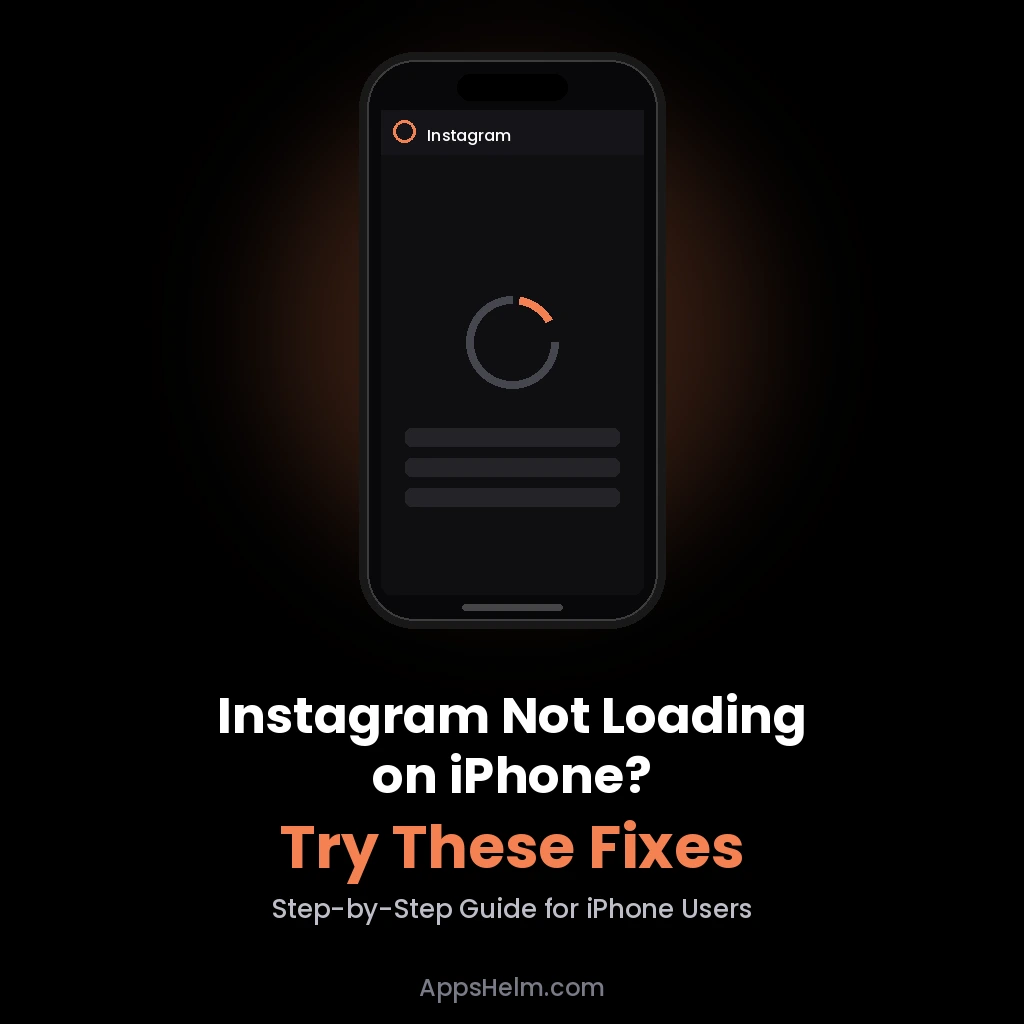
If Instagram is not loading on your iPhone, you’re dealing with one of the most common app issues iPhone users report, and in almost every case, it has nothing to do with your phone being broken. Instagram not loading on iPhone usually points to one of a handful of causes: a weak internet connection, a full app cache, an outdated iOS or app version, a server-side outage, or a permissions setting that’s blocking the app from working properly. The good news is that most of these fixes take less than two minutes, and you don’t need any technical knowledge to apply them.
This guide walks through every proven fix for Instagram not loading on iPhone, starting with the fastest solutions and moving toward more advanced steps if the problem sticks around.
Quick Answer: Why Is Instagram Not Loading on My iPhone?
Instagram typically fails to load on iPhone because of a weak or unstable internet connection, a server outage on Instagram’s side, an outdated app version, a corrupted app cache, or restricted permissions like Background App Refresh or Cellular Data being turned off. Restarting the app, checking your connection, and updating Instagram resolve the issue for most users within minutes.
| Symptom | Likely Cause | Fastest Fix |
|---|---|---|
| Feed stuck on spinning circle | Weak or unstable connection | Switch between Wi-Fi and cellular data |
| App opens but nothing loads | Server outage or corrupted cache | Check Instagram’s status, then offload the app |
| Stories and Reels won’t play | Low storage or outdated app | Free up storage, update the app |
| App crashes immediately on open | Corrupted app data | Delete and reinstall Instagram |
| Works on Wi-Fi but not cellular | Cellular data permission disabled | Enable cellular data for Instagram in Settings |
| Loads for some accounts, not others | Account-specific server issue | Log out and log back in |
Common Reasons Instagram Won’t Load on iPhone
Before trying every fix at once, it helps to understand what’s actually causing the problem. Instagram depends on a stable connection to your phone’s network and Apple’s iOS permissions to fetch your feed, Stories, Reels, and messages in real time. When any part of that chain breaks, the app either freezes, shows a blank screen, or spins endlessly without loading content.
The most frequent causes include:
- Unstable or slow internet connection — Instagram needs consistent bandwidth to pull images and videos; even brief drops can stall the entire feed.
- Instagram server outage — Like any large platform, Instagram occasionally experiences regional or global outages that have nothing to do with your device.
- Outdated app version — Meta regularly ships updates that fix loading bugs, and an old version can become incompatible with current servers.
- Corrupted or overloaded cache — Temporary files that Instagram stores on your iPhone can become corrupted over time and block new content from loading.
- iOS version compatibility issues — Running an old iOS version alongside a newer Instagram update sometimes causes loading failures.
- Disabled permissions — Background App Refresh, Cellular Data access, or Mobile Data Settings inside Instagram can quietly block the app from refreshing content.
- Low storage space — iPhones need free space to write temporary files while loading media; a nearly full phone can interrupt this process.
- VPN or ad blocker interference — Some VPN apps and content blockers disrupt Instagram’s connection to its servers.
How to Fix Instagram Not Loading on iPhone (Step-by-Step)
Work through these steps in order. Most people fix the issue within the first four steps.
1. Check Your Internet Connection First
Open Safari and load any website. If pages load slowly or fail outright, your connection is the actual problem, not Instagram.
- Toggle Airplane Mode on for 10 seconds, then turn it off again to force a fresh network connection.
- Switch from Wi-Fi to cellular data, or the reverse, to see which one works.
- If you’re on Wi-Fi, restart your router by unplugging it for 30 seconds.
2. Confirm Instagram Isn’t Down
Before changing any settings, rule out a server-side outage. Check a reliable outage-tracking site or search “Instagram down” to see if other users are reporting the same problem. If there’s a widespread outage, no fix on your end will help until Instagram resolves it.
3. Force Close and Reopen the App
Swipe up from the bottom of your screen (or double-press the Home button on older iPhones) to view open apps, then swipe Instagram off the screen to fully close it. Reopen the app and check if it loads normally.
4. Restart Your iPhone
A simple restart clears temporary memory issues and refreshes your network connection. Hold the side button and either volume button until the power-off slider appears, then turn your phone back on after 30 seconds.
5. Update Instagram to the Latest Version
Outdated versions are one of the most common, overlooked causes of loading failures.
- Open the App Store.
- Tap your profile icon in the top-right corner.
- Scroll down to see pending updates.
- If Instagram appears, tap Update.
6. Offload and Reinstall Instagram (iPhone Cache Fix)
iPhones don’t have a direct “clear cache” button like Android, so offloading or reinstalling the app is the equivalent fix.
- Go to Settings → General → iPhone Storage.
- Find and tap Instagram.
- Tap Offload App to clear temporary files while keeping your login data, or tap Delete App for a full reinstall.
- Reinstall from the App Store and log back in.
7. Check Cellular Data Permissions
If Instagram loads on Wi-Fi but not on mobile data, this is almost always the cause.
- Go to Settings → Cellular (or Mobile Data).
- Scroll down to find Instagram.
- Make sure the toggle next to it is turned on.
8. Turn On Background App Refresh
This setting allows Instagram to refresh content even when you’re not actively using it, and disabling it can cause loading delays.
- Go to Settings → General → Background App Refresh.
- Make sure it’s turned on globally and specifically for Instagram.
9. Free Up Storage Space
Instagram needs free space to load and cache new content. Go to Settings → General → iPhone Storage and review which apps or files are taking up the most space. Aim to keep at least 1 GB free.
10. Update iOS
An outdated iOS version can become incompatible with newer Instagram updates.
- Go to Settings → General → Software Update.
- If an update is available, tap Download and Install.
11. Turn Off VPN or Ad Blockers
If you use a VPN or content-blocking app, temporarily disable it and reopen Instagram. Some VPN servers are flagged by Instagram’s systems, which can prevent the app from loading properly.
12. Log Out and Log Back In
Sometimes a single account’s session becomes stuck on Instagram’s servers, even though the app works fine for everyone else.
- Go to your profile, tap the menu icon, and select Log Out.
- Reopen Instagram and log back in with your credentials.
13. Reset Network Settings (Last Resort)
If nothing else works, resetting your network settings clears every saved Wi-Fi password and cellular configuration, often resolving stubborn, device-level connection issues.
- Go to Settings → General → Transfer or Reset iPhone → Reset.
- Tap Reset Network Settings and confirm.
Instagram Not Loading on iPhone: USA-Specific Notes
US carriers like Verizon, AT&T, and T-Mobile occasionally roll out network updates that briefly affect app performance, particularly after a regional outage or maintenance window. If Instagram won’t load specifically on cellular data, it’s worth checking your carrier’s outage map before assuming the problem is with Instagram or your phone. Additionally, US users on older iPhone models (iPhone 8 and earlier) may notice loading issues sooner than newer models since Instagram’s app size and feature set have grown significantly, placing more demand on older hardware and limited storage.
If none of the fixes above resolve the issue, US users can reach Instagram support directly through the in-app Settings → Help → Report a Problem menu, which routes the issue to Meta’s support team for review.
Recommended Settings to Prevent Future Loading Issues
| Setting | Recommended State | Why It Matters |
|---|---|---|
| Background App Refresh | On | Keeps Instagram’s cache fresh before you open it |
| Cellular Data for Instagram | On | Prevents loading failures when off Wi-Fi |
| iOS Auto-Update | On | Keeps your iPhone compatible with new Instagram versions |
| App Auto-Update (App Store) | On | Avoids running outdated, bug-prone versions |
| Free Storage Space | 1 GB minimum | Gives Instagram room to cache new content |
When to Contact Instagram Support
If you’ve worked through every fix above and Instagram still won’t load, the issue may be tied to your specific account rather than your device. This is common if your account has been flagged for review or temporarily restricted. In this case, go to Settings → Help → Report a Problem inside the app, or visit Instagram’s official Help Center for account-specific support.
Frequently Asked Questions
Why is Instagram not loading on my iPhone but works fine on other apps? This usually points to an Instagram-specific issue rather than a general internet problem. It’s typically caused by a corrupted app cache, an outdated app version, or a permissions setting like Cellular Data or Background App Refresh being turned off for Instagram specifically.
Why does Instagram load on Wi-Fi but not on cellular data? This almost always means Instagram doesn’t have permission to use cellular data on your iPhone. Go to Settings, then Cellular, find Instagram in the list, and make sure the toggle is switched on.
Does offloading Instagram delete my photos or account data? No. Offloading only removes temporary cache files from your iPhone’s storage. Your account, photos, messages, and followers remain completely unaffected, and your login stays saved unless you specifically log out.
How do I know if Instagram is down everywhere or just on my phone? Check an outage-tracking website or search social media for recent reports. If many users across different devices and locations report the same issue at the same time, it’s a server-side outage rather than a problem with your iPhone.
Will resetting network settings delete my photos or apps? No, but it will erase all saved Wi-Fi passwords, VPN configurations, and cellular settings on your iPhone. You’ll need to reconnect to your Wi-Fi network and re-enter passwords afterward, but no apps, photos, or personal data are deleted.
Why did Instagram stop loading right after an iOS update? New iOS updates occasionally introduce compatibility issues with the current Instagram version. Updating Instagram to its latest version through the App Store usually resolves this within a day or two of a major iOS release.
Final Thoughts
Instagram not loading on iPhone is frustrating, especially when you’re trying to check messages or post something on a deadline, but it’s rarely a sign of a deeper device problem. In most cases, it comes down to your connection, app cache, or a setting buried in your iPhone that’s easy to miss. Work through the fixes above in order, and you’ll most likely have Instagram loading normally again before you reach the end of the list.
Connect: For more iPhone and Android app troubleshooting guides, follow AppsHelm on social media or visit our website for daily updates.
Want More App Fix Guides?
Follow AppsHelm for the latest app troubleshooting guides, reviews, and comparisons! We test and verify every fix before publishing, so you spend less time guessing and more time using your apps.
Visit AppsHelm.com for expert app reviews and fixes!
Related Articles: